
Manage AI Assistant in a meeting
AI Assistant provides real-time and post-meeting summaries and transcripts to keep you informed without disrupting the conversation.
- In the meeting controls, select AI Assistant.
- Select Start.
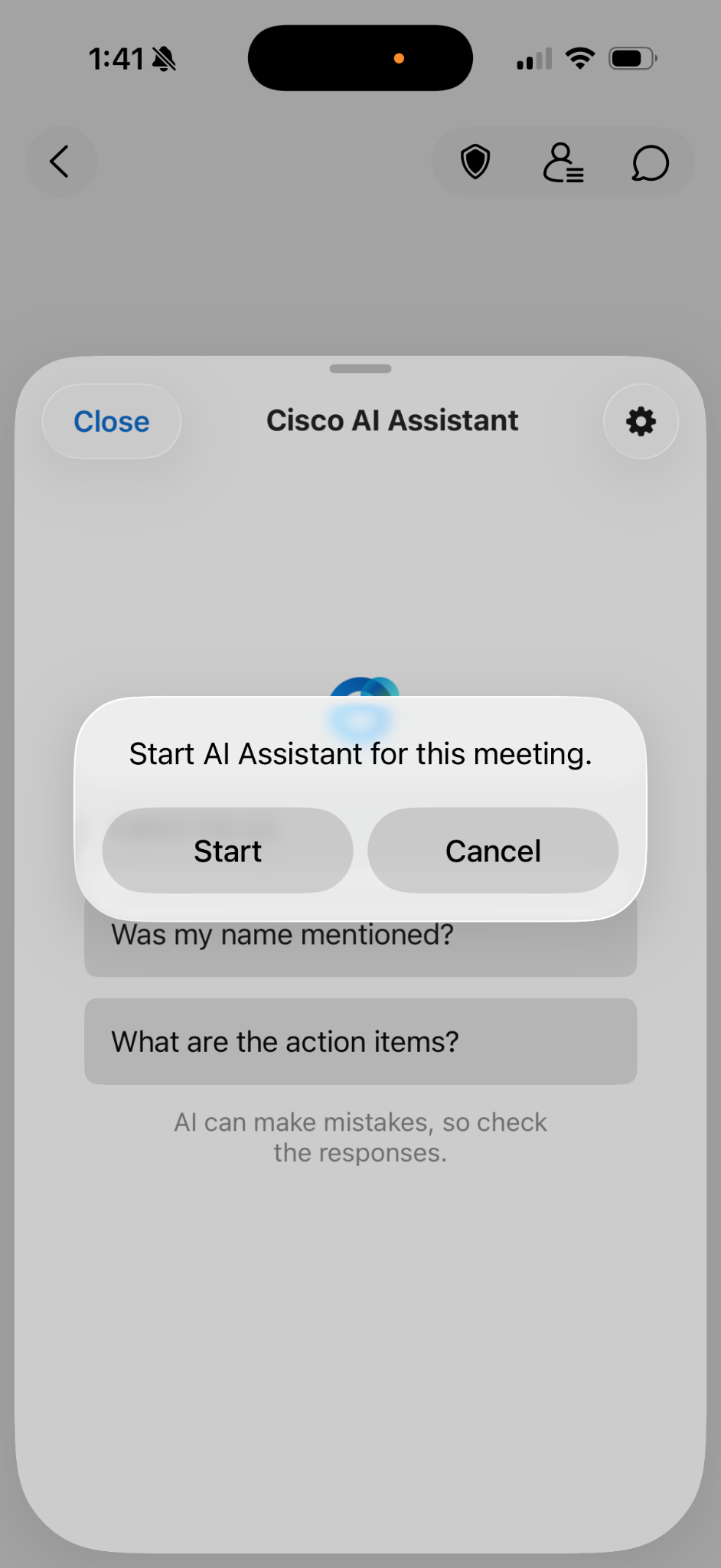
An audio and visual alert confirms that the summary is active.
If the meeting is using default settings, only the host or cohosts can start the summary. If you are not the host, a pop-up appears prompting you to request that they enable it.
Once the summary is active, the AI Assistant panel offers the following options:
- Catch me up — a recap of the last 15 minutes.
- Was my name mentioned — shows if your name was mentioned in the conversation.
- What are the action items — identifies tasks discussed in the meeting.
- Ask me anything about this meeting — lets you ask questions privately without others seeing your responses.

Responses are visible only to you and disappear after the meeting ends. The summary and transcript save to the meeting host's Webex account. If the meeting is linked to a space, the summary and transcript link appear there automatically.
To stop the summary, the host or anyone with permission selects Stop summary in the AI Assistant panel.

Meeting hosts can select Meeting options in the AI Assistant panel to control who can start and stop summaries and whether summaries and transcripts are saved after the meeting.

